
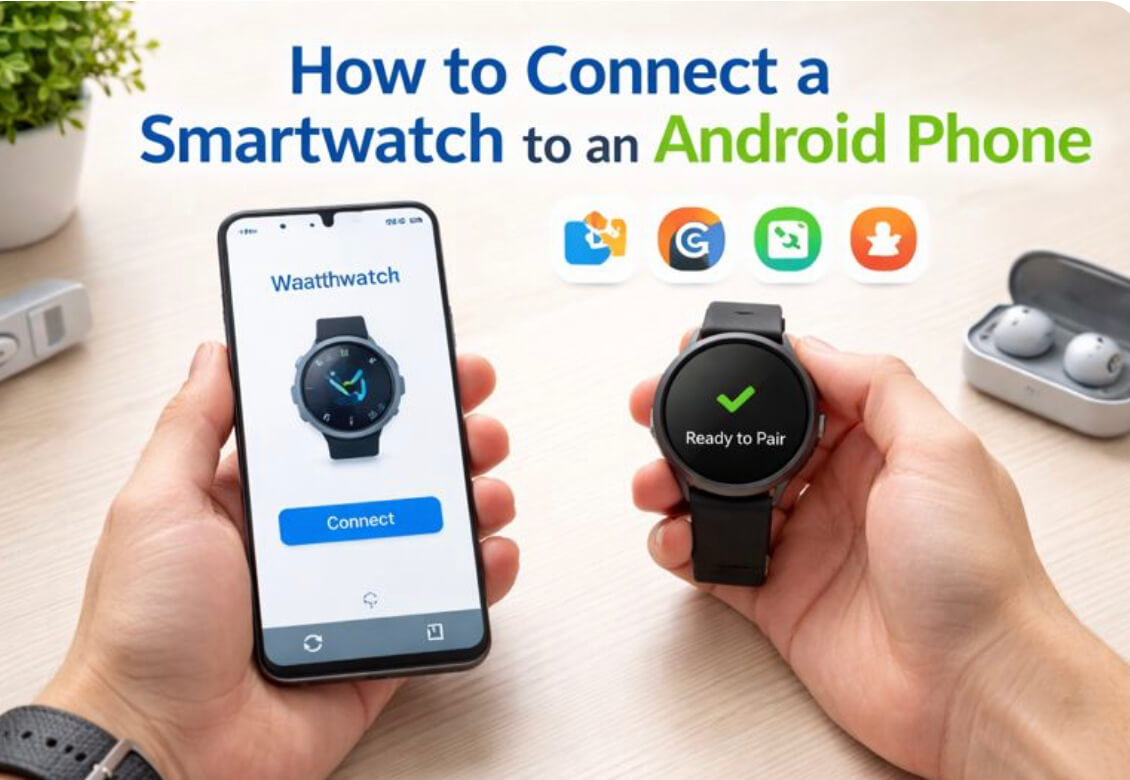
How to Connect a Smartwatch to an Android Phone – Step-by-Step Guide
How to Connect a Smartwatch to an Android Phone
Connecting a smartwatch to your Android phone doesn’t have to be complicated. With the right steps, you can set up your watch in minutes, sync notifications, track fitness, and enjoy all the features your wearable has to offer. This guide will show you how to connect a smartwatch to an Android phone, troubleshoot common issues, and get your watch fully synced in minutes.
In this comprehensive guide, we will walk you through the step-by-step process to pair a smartwatch with an Android phone, troubleshoot common issues, and answer the most frequently asked questions.


Why You Should Pair a Smartwatch with Your Android Phone
Pairing your smartwatch with an Android phone allows you to:
-
Receive notifications, calls, and messages directly on your wrist
-
Track fitness and health metrics like steps, heart rate, and sleep patterns
-
Sync apps and settings through the wearable app
-
Receive firmware updates to keep your smartwatch running smoothly
By following this guide, your android smartwatch setup will be smooth and hassle-free.
Step 1: Check Smartwatch Compatibility


Before connecting, make sure:
-
Your Android phone runs Android 8.0 or higher
-
Your smartwatch supports Android devices
-
Bluetooth is available on both devices
👉 Tip: Most Wear OS, Samsung Galaxy Watch, Xiaomi, Amazfit, and Fitbit watches work with Android.
| Device Type | Requirement |
|---|---|
| Android Phone | Android 8.0 or later |
| Smartwatch | Supports Android phones |
| Bluetooth | Must be enabled on both devices |
Tip: Most Wear OS, Samsung Galaxy Watch, Xiaomi, Amazfit, and Noise watches work with Android devices.
Step 2: Charge Both Devices

Next, make sure both devices have enough battery for pairing. Your smartwatch should be at least 50% charged, and your phone should have sufficient power to avoid interruptions. Low battery can cause connection failures, so it’s important to charge both devices before starting.

Step 3: Install the Companion App
Most smartwatches require a companion app to connect smartwatch to Android:
| Brand | App |
|---|---|
| Wear OS | Wear OS by Google |
| Samsung Galaxy Watch | Samsung Wearable |
| Xiaomi / Amazfit | Zepp App / Mi Fitness |
| Noise | Noise App |
| Fitbit | Fitbit App |
Download the correct app from the Google Play Store.
Step 4: Turn On Bluetooth on Your Android Phone
make sure Bluetooth is enabled on your Android phone. Open Settings, tap Bluetooth, and switch it on. Keeping Bluetooth on ensures your watch can connect without interruptions.
-
Open Settings
-
Tap Bluetooth
-
Turn Bluetooth ON
-
Keep Bluetooth enabled during the entire setup
Step 5: Power On Your Smartwatch
Next, turn on your smartwatch. Select your preferred language and navigate to the pairing menu. This step prepares your device to be recognized by your phone.
-
Turn on your smartwatch
-
Select your preferred language
-
Choose Pair / Connect New Device if prompted
Step 6: Pair Your Smartwatch with Android


Now it’s time to connect your watch to your Android phone. Open the companion app for your smartwatch brand and follow these instructions:
-
Open the companion app on your phone
-
Tap Add New Device / Pair Device
-
Select your smartwatch from the list
-
Confirm the pairing code on both devices
✅ Once confirmed, pairing will start automatically.
Step 7: Grant Permissions
For full functionality, grant the required permissions:
-
Contacts
-
Notifications
-
Location
-
Phone access
These permissions allow notifications sync, calls, and app data transfer.
Step 8: Sync Apps and Notifications
After pairing:
-
Enable app notifications
-
Sync fitness and health data
-
Update smartwatch firmware if prompted
This process may take a few minutes, especially for first-time setups.
Step 9: Test the Connection


-
Send a test notification
-
Make a test call (if supported)
-
Check time and data syncing
✅ If everything works, your android smartwatch setup is complete.
Pre-Setup Checklist: Getting Ready to Pair
Before you begin your first android smartwatch setup, there are a few things you should check to ensure a smooth bluetooth pairing experience:
1. Charge Both Devices: Ensure both your smartphone and your smartwatch have at least 50% battery.
2. Enable Bluetooth: Your phone uses Bluetooth to “talk” to the watch.
3. Check Smartwatch Compatibility: Most modern smartwatches work with Android, but some require specific versions (e.g., Android 8.0 or higher).
4. Internet Connection: You will likely need to download a wearable app from the Google Play Store.
Step-by-Step Guide: How to Connect Smartwatch to Android Phone
While every brand has a slightly different interface, the general process to connect a smart watch to android phone follows a standard pattern. Follow these steps to connect smartwatch to android for the first time:
Step 1: Turn on Bluetooth on Your Phone
Go to your phone’s Settings > Connected Devices > Connection Preferences > Bluetooth and toggle the switch to On. Alternatively, swipe down from the top of your screen to access the Quick Settings panel and tap the Bluetooth icon.
Step 2: Power on Your Smartwatch
Press and hold the power button (usually on the side of the watch) until the logo appears. Most watches will immediately enter pairing mode and display a welcome screen.
Step 3: Download the Required Wearable App
This is the most critical step for a successful android smartwatch setup. Most watches do not connect via the phone’s Bluetooth menu alone; they require a specific companion app.
•
-
Samsung Galaxy Watch: Use the Galaxy Wearable app to pair your device.
-
Wear OS Devices (Pixel Watch, Fossil, etc.): Open the Wear OS by Google app and follow the prompts.
-
Noise Watches: Download and open the NoiseFit app for pairing.
-
Generic or Budget Watches: Many models use HryFine, Da Fit, or FitPro apps for connection.
Tip: Make sure your phone and watch are close together during pairing for a smooth connection.
Step 4: How to Pair Smartwatch with Android via the App
1. Open the wearable app you just downloaded.
2. Tap on Add New Device or Scan for Device.
3. Select your smartwatch model from the list.
4. A pairing code will appear on both your watch and your phone.
5. If the codes match, tap Pair or Confirm on both devices to sync smartwatch with android.
Step 5: Grant Permissions for Notifications Sync
The app will ask for permission to access your contacts, notifications, and location. To ensure your watch can receive texts and calls (the notifications sync), you must allow these permissions.
How to Connect Specific Smartwatch Brands
Different manufacturers have unique ecosystems. Here is how to connect smart watch to android phone based on the brand you own.
How to Connect a Samsung Smartwatch
Samsung watches are highly integrated. To pair smartwatch with android phone when it’s a Samsung:
1. Open the Galaxy Wearable app.
2. Tap Start.
3. The app will automatically detect your watch. Tap Connect.
4. Follow the prompts to sign in to your Samsung Account.
How to Connect a Noise Smartwatch
Noise is one of the most popular brands for budget-conscious users.
1. Download the NoiseFit app.
2. Turn on Bluetooth and Location on your phone.
3. In the app, go to the “Devices” tab and select Bind Device.
4. Confirm the pairing on the watch screen.
How to Connect Smartwatch to Android Phone using HryFine App
Many generic smartwatches use the HryFine app.
1. Open the HryFine app and grant location permissions.
2. Tap the “Me” or “Equipment” tab.
3. Select Search Device.
4. Once your watch ID appears, tap it to bind the devices.
Troubleshooting Common Issues


If you are struggling with a smartwatch not connecting to android phone, or if your android phone is not pairing with smartwatch, try these common fixes:
1. Restart Both Devices
A simple reboot often fixes bluetooth pairing glitches. Turn your phone and watch off and back on again.
2. Reset Network Settings
If you can’t connect smartwatch to android, go to Settings > System > Reset options > Reset Wi-Fi, mobile & Bluetooth on your phone. Note: This will delete saved Wi-Fi passwords.
3. Check for a Firmware Update
Sometimes a firmware update is needed for the watch to communicate with newer Android versions. Check the companion app for any pending updates.
4. Clear App Cache
If the wearable app is crashing, go to Settings > Apps, find your smartwatch app, and tap Clear Cache.
Android Phone Not Pairing with Smartwatch
-
Ensure phone is compatible
-
Disable battery optimization for the wearable app
-
Keep devices close together during pairing
Notifications Not Syncing
-
Check app permissions
-
Update the wearable app
-
Enable notification access in phone settings
Pairing Without an App
-
Some smartwatches allow QR code pairing
-
Scan the code displayed on the watch using your phone’s camera
-
Follow on-screen instructions
Note: Most features like notifications and fitness tracking require the official app.
FAQs
Q1: How to connect a smartwatch with a phone using a QR code?
A1: Open the smartwatch setup screen, scan the QR code with your phone, and follow the instructions to pair devices.
Q2: How do I connect my smartwatch to my phone without the app?
A2: Some watches support Bluetooth pairing without an app, but features like notifications and fitness tracking may be limited.
Q3: How do I set up my smartwatch on Android?
A3: Turn on the watch, install the companion app, enable Bluetooth, and follow step-by-step pairing instructions.
Q4: Can I buy a smartwatch on Easy EMIS?
A4: Check the platform for availability; pairing steps remain the same once purchased.
Q5: How to connect Noise smartwatch with mobile?
A5: Install the Noise app, turn on Bluetooth, and follow the pairing instructions in the app.
Q6: How to turn on Bluetooth in smartwatch?
A6: Go to Settings → Connectivity → Bluetooth → Turn On.
Q7: How to connect smartwatch to Android phone without app?
A7: Use the device’s Bluetooth settings or QR code pairing; note limited functionality.
Q8: How to connect smartwatch to phone without app?
A8: Enable Bluetooth on both devices and pair via phone settings; check compatibility first.
Q9: How to connect smartwatch to Android phone Bluetooth?
A9: Enable Bluetooth on both devices and select the smartwatch in your phone’s available devices.
Q10: How to connect smartwatch to Samsung phone?
A10: Use Samsung Wearable app for Samsung watches or Wear OS for other brands.
Q11: How to connect smartwatch to Android phone without Bluetooth?
A11: Most smartwatches require Bluetooth; USB or Wi-Fi only works for specific devices.
Q12: How to connect smartwatch to phone with app?
A12: Install the companion app, turn on Bluetooth, and follow the in-app pairing instructions.
Q13: How to connect smartwatch to iPhone?
A13: Install the compatible iOS app (e.g., Wear OS, Fitbit) and follow pairing instructions.
Q14: How to connect smartwatch with phone?
A14: Turn on both devices, enable Bluetooth, open the companion app, and pair them.
Q15: How to connect smartwatch to Android phone using Hryfine app?
A15: Install the Hryfine app, enable Bluetooth, and follow the app instructions to pair.
Q16: How to connect smart watch with phone using QR code?
A16: Open the smartwatch pairing screen, scan the QR code with your phone, and confirm pairing.
Q17: How to connect smart watch with OPPO phone?
A17: Install the watch’s companion app, turn on Bluetooth, and pair using the app.
Q18: How to connect smart watch with phone without Bluetooth?
A18: Only specific smartwatches allow Wi-Fi or USB pairing; check manufacturer instructions.
Practical Tips for Best Performance
-
Keep Bluetooth enabled for continuous syncing
-
Regularly update apps and watch firmware
-
Avoid task-killer apps on Android
-
Keep watch and phone close for stable connection
-
Restart devices if syncing fails
Common Mistakes to Avoid
-
Pairing without sufficient battery
-
Ignoring app permissions (notifications may fail)
-
Using outdated firmware or app versions
-
Forgetting to enable Bluetooth before setup
[sp_easyaccordion id=”1481″]